Tips, instructions, guides, and videos for WordPress websites for nonprofits, small businesses, trade associations, clubs, and organizations.

I was listening to a podcast called How to Rock a Blog and they mentioned a resource with step-by-step instructions on how to start a blog. The podcast was produced by ChooseFI.com, an organization that promotes financial independence (FI). They encourage their W-2 income followers to set up a side hustle for additional income. However, anyone can have a side hustle, it’s the start to becoming an entrepreneur where you own your own business instead of working for someone else. Many of my clients are independent contractors or entrepreneurs who own their own business; therefore, this podcast has value for my clients too.

Here’s a link to the podcast I listened to that introduced me to Ashley Barnett and her role as the managing editor for the blog of the company she works for, the ChooseFI organization. https://www.choosefi.com/how-to-rock-a-blog.

You can listen to the podcast or just jump right into the blog post Ashley wrote called How To Start a Blog: https://www.choosefi.com/how-to-start-a-blog/.

It was posted May 26, 2020. It has an enormous amount of tips and suggestions for new or advanced bloggers that are still relevant today.

Here are a few things I want to point out from the blog post.

Keep in mind, the content in this blog post is one perspective, from one professional blogger. As you read through this very thorough blog post about how to start a blog, try not to be overwhelmed. You should review what she recommends, then prioritize what’s important to you and start there. You don’t have to do everything on her list all at one time, ease into it. And if you are starting a blog as a hobby vs a business, much of the resources won’t apply to you. I do agree with her Canva recommendation for creating graphics and I use 123rf.com for images. (more about that too on my Resources page). I have a shortcut recommendation instead of Grammarly that’s free, ask me about it.

And if you want to learn even more from the author, Ashley Barnett, you can take her (paid) course called Hit Publish. There is a link to it at the beginning of the blog post and several times throughout the post. She also provides links to other paid courses for additional education on related topics.

Let me know what questions I can answer for you about how to start a blog or website. I highly recommend WordPress. I think you will find this resource extremely useful, it covers a lot of topics.

While I am a BlueHost and SiteGround Affiliate, there is no affiliate link with ChooseFI.com. I listen to a lot of their podcasts and find their information on personal finance to be very useful. You can ask me more about that too! I am a Learner and I love to share the things I have learned with others. Yes, Communication is another of my strengths, read about My Top 5 Strengths!

Email me or give me a call at 952-484-6015. Connect with me on LinkedIn.

Michelle Aspelin
Mindshare Marketing & Implementation Services LLC


Everyone needs Royalty Free images for their website or blog, right? You simply can’t take all those images yourself, and you don’t want Clip Art. So what do you do? Where can you go to find inexpensive, professional photos and images? Its easy…click below…

Royalty Free Images

They have a LARGE assortment of photos and graphics with web versions all the way up to high resolution for print marketing. You can sort by keyword and add different filters like, men, women, children, age ranges, number of people in the image, horizontal or vertical images and more. You can get graphics like buttons and symbols. They make it really easy.

You purchase a package of points for as low as $20, then choose your photo, image or graphic and download immediately. You can download it again if you forgot where you filed it!

For heavy image users, you can purchase a subscription which allows so many files per day.

I have used images from them on my own website as well as for clients.

Read my Photo Policy page regarding images for your WordPress websites.

Let me know if you have any questions!

Michelle Aspelin
Entrepreneur and Professional Implementer
Mindshare Marketing & Implementation Services LLC
(952) 484-6015   Email Me

The Akismet spam protector plugin is no longer a free option for protecting you from spam Comments on your blog/website.

I have removed the Akismet spam protector plugin from my own blogs and searched the plugins for an alternative. I am using one right now and will see how it goes.

You can do the same, search for and test a new plugin to reduce your spam on your Comments. If you’d like me to replace your Akismet for something else, please let me know. Chances are, if you haven’t logged into your site for a while, there may be other plugins that you need to update as well as your WordPress version itself. Maybe some of your content needs to be freshened up too. Here is an older post I made about the importance of maintaining your site.

Call or email if you’d like my help. WordPress is not a “set it and forget it” type of website. Keeping your site fresh is your best way of generating new leads and new clients or customers.

I don’t charge my clients a monthly fee to keep their sites maintained and using the most up-to-date features and functionality. I allow my clients to do that themselves. But if you find you can’t keep up with it, let me know and we can set up a maintenance plan that works for you.

Michelle Aspelin
Mindshare Marketing & Implementation Services LLC

YouTube is the second largest search engine after Google, therefore YouTube SEO is important. Be sure to include key information on your YouTube Video to increase your chances of showing up in the results of a Google Search. Always post your video to YouTube first and then add to your website or blog. Be sure to promote it on Facebook and LinkedIn or other social media outlets once you’ve posted it to your website or blog.

How to add SEO to your YouTube Video

Log in to your YouTube Account

To add a new video, click Upload near the center of your screen. Follow the prompts and be sure to add the info below. If you already have the video uploaded and want to add SEO, follow these steps.

At the top right, click on the arrow by your photo and to access the menu of options.

Choose Video Manager

Hover over the name of the video and click it to edit

2 SEO Opportunities

Title – Make sure it reflects the video. Include your keyword in the title.

About – Add a detailed description of the video. Google will search this information. Describe the video content and include keywords.

Also make sure you have a Channel specific to you and your keywords. Make sure your profile is complete with an image and description. Use keywords here too.


YouTube Instructions by Michelle Aspelin

To upload a video to your website

Go to your Video Manager, then click on the name of the video you want to add to your site or blog.

Click on SHARE

You can copy and paste the link in an email or on a Facebook page. To allow users to view it right on your website without having to follow a link and then come back to your site, choose EMBED.

Copy the code, we can edit the width of the video once it’s embedded on your site.

Go to where you’d like the video to appear on your site. Switch from the Visual mode to TEXT mode. Click paste.

Do a Preview to make sure it looks good, then update that page to save it. If you need to make it wider or narrower, click on the TEXT mode again and edit the numeric portion of the code. Be sure to UPDATE again to Save your changes.

There are other options like making your video private. If the video does not play on your site, consider using the old embed code. You can see that option on the screen shot I added to this post.

Michelle Aspelin
Mindshare Marketing & Implementation Services LLC

P.S. Like all online platforms, YouTube may change the way their platform is organized and these instructions may need to be adapted for the current interface. If you need help, let me know.

Email Michelle

Wordpress websites and blogsHere are very simple instructions on how to edit a WordPress Page.
Login to your website or blog by going to yourdomain.com/wp-admin or your customized login page URL.

Enter your username and password.

The first screen you will see is called your Dashboard.

At the top left in the black menu bar, click on the name of your website or blog.

Go to the page you’d like to EDIT.

Once on the page you want to edit, click EDIT PAGE at the top menu.

Edit a WordPress Page

Make your edits. Look it over. At the top right, click on Preview Changes to see your changes before you make it live.

Once it’s complete, click UPDATE at the top right. That is how you save it and “publish” your changes to the site.

Now go to VIEW PAGE at the top menu and view your changes. If you are satisfied, then you are done. If not, click EDIT PAGE again and repeat steps above.

Most likely I have installed a plugin for your site called Yoast SEO. Scroll down on your editing page where you see Title, Description and Keywords. Make sure they are still relevant after making your edits.

For more info about how to make a HYPERLINK to a different page on your site or a different website, read this post.

Want to add a photo, image or logo, or make a blog post? Read this post.

If you have questions, call me at 952-484-6015 or send me an email or text. I’m here to help.

Thanks!
Michelle Aspelin
Mindshare Marketing & Implementation Services LLC


Ways to Promote Your Blog Post

Take advantage of your networks and post your blog on Facebook, LinkedIn, Instagram and other sites. Create several unique status updates listing the reasons to visit your new website or blog and include a link to your site.

Simple Instructions

To create a “link” directly to your blog post, be on your specific blog post, then copy the URL address in your browser at the top of the screen. Then, go to Facebook or wherever, and paste the URL link. Add a comment about the link. It will drive traffic to your site and users will land specifically on our post vs. your Home page.

Ask your friends to SHARE with their friends. Remember the power of viral marketing!

Consider buying an ad on Facebook. You can create a specific daily budget and reach your target market.

Announce your new site or blog to the groups you’re affiliated with on LinkedIn, Facebook, and other professional organizations. Make posts directly on their sites and blogs. Again, you want to position yourself as the expert and provide a solution to their problem.

There are software and apps out there that can automate this posting as well.

Follow me on Facebook or LinkedIn.

Michelle Aspelin
Entrepreneur and Professional Implementer
Mindshare Marketing & Implementation Services
952-484-6015


These instructions work for both pages and posts

If you are linking to another website, go to the page on the site you want to link to and copy the URL from the top of your browser. Or if you know the exact link already, you can skip this step.

Login to your website.

Go to the page or post where you’d like to add the link.

First type the “anchor text”. You can use “click here” or “here’s the link”, or better yet, use the words themselves like “visit zyx website for details” or “learn more at xyz”. It doesn’t matter.

For our example, let’s use “click here”.

It will look something like this… For the recipe, click here.

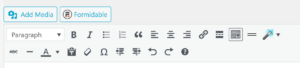
Highlight the words “click here” and on the edit toolbar, click on the icon that looks like a chain link, when you hover over it, it says insert/edit link.

How to add a Hyperlink to a WordPress Website - showing the WordPress toolbar

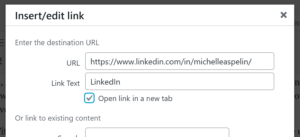
Put your curser on the URL field and delete the https:// that is in there by default. Right click and choose PASTE to insert your link URL.

You can give the link a Title, like “Link to the Shrimp Fondue Recipe”, or leave it blank. When the user hovers over the link, it will display what you have entered as the Title, so make it reader friendly, it’s not just for you.

Check the box that says “open link in new tab”. (When a user clicks on the link on your site, they will go to the URL you linked. When they are done and close that window, they will be brought back to your site. If you don’t check the box, when they close the window, they will NOT be brought back to your site. You worked hard to get them to your site, you don’t want to lose them!)

how to add a link in a wordpress website

*NOTE: If you are creating a hyperlink to another page on your website, then DO NOT check the “open link in new tab” box. Otherwise, they will have your website open twice and might get confused.

To save click Add Link.

Go to your page or post and double check that the link works. Hover over it and see the Title. Click on it. If it doesn’t work, check where you pasted the URL, did you delete the default https:// or is it in there twice? If it still doesn’t work, repeat steps.

To Create a Link to a document or audio file

First you need to upload the file to your website, then you can copy the File URL and follow the instructions above to create a hyperlink.

Go to your Dashboard.

Choose Media, Add New

Click “Select File” so you can upload the file from your computer to your website.

After the image or file is loaded, give it a Title that makes sense to you. If it’s an audio file of your radio interview, call it “Radio Interview 9.12.12 with Dow Jane” or whatever makes sense for you. When the user hovers over the link, it will display what you have entered as the Title, so make it reader friendly.

For good SEO value, copy the Title text into the Alternate Text field and the Description Field. If you are uploading an image, you can add a caption. If it’s a document or audio file, leave that blank.

WordPress assigns this media a File URL. Copy the entire File URL.

Choose SAVE All Changes at the bottom. Now your file is saved on your website or blog.

Follow the instructions above so you can create a hyperlink to this file on your website or blog. You can also paste this file URL on other applications like Facebook.

See more WordPress tips on my blog. (see my internal link for my blog page?)

Michelle Aspelin
Mindshare Marketing and Implementation Services
Connect with me on LinkedIn (see my external hyperlink for the word LinkedIn?)