Tips, instructions, guides, and videos for WordPress websites for nonprofits, small businesses, trade associations, clubs, and organizations.

Updated December 2, 2025

WordPress is an outstanding system for creating a website or blog but you need to remember to update your WordPress website or blog on a regular basis. Every site needs regular maintenance. The key to maintaining a WordPress website or blog is have a system to make it easy. I recommend you go to your calendar system and pick a date or day of the month. Make an entry that says “website maintenance” and give yourself 30 minutes. If you do this monthly, it should not take that long. Doing it weekly is even better these days. Here’s what you want to do during your “maintenance time”.

  1. File and Database backup. You’ll want a backup of all the images and files you upload and the site itself. There’s several ways to do it. If your site is hosted with BlueHost, most likely they are doing regular backups. You’ll want to confirm this with your hosting provider.
  2. Plugin updating. When you see a number on your Dashboard next to the Plugin list, then there’s a plugin that needs to be updated. Plugin updating is easy, but it’s a double-edged sword. On the one hand, the update may implement important security fixes. On the other hand, it might conflict with another plugin. It’s smart to check out the plugin home page before updating, to see what’s new and different, and see if anyone else has had any problems. If it looks ok, then update the plugin and choose “upgrade automatically”. This will deactivate the plugin, upload new code, and then activate again automatically. Your site may already be set up to update the plugins automatically.
  3. WordPress updating. WordPress also updates its software frequently. The process is similar to updating a plugin. Here’s what I do. I update all of my plugins first, and then I update WordPress. I want all of my plugins to be compatible with WordPress. Occasionally they are not and they will “break” and I might need to find another plugin to do the same function that works with the upgraded WordPress. Make sure you have a recent backup before you upgrade your WordPress version. I have been updating more frequently recently to keep security at a maximum.
  4. Check for spam comments. Easy: from your Dashboard, scroll down to Comments. Click on the Spam button and delete all. I don’t waste any time checking to see if any marked spam might be real, they are few and far between, and consist mainly of “Great post!” comments which don’t add value. Be sure to keep your spam blocker for Comments plugin active. For most sites I have installed Spam Blocker for you, Akismit is outdated if you still have that one. Not all websites and blogs allow readers to comment.
  5. Check stats. While traffic to your website fluctuates daily, over the course of weeks and months, your traffic should be relatively smooth. For most websites I try to install a Google Analytics plugin because it’s simple, effective and informative. You can check your stats from your Google account or right on your website. In addition to the traffic counts, you want to know which sites are referring users to your site and what keywords are users typing that bring them to your site. Make sure you incorporate those keywords into your posts and pages to bring more traffic to your site. If you have questions on this, let me know.
  6. Check your links. Sometimes, plugins can interact in strange ways with each other. You should check critical functionality any time you change the configuration of your site or blog, say, by installing a plugin. If you don’t check it after you install a plugin, then check it during this regular maintenance time. Make sure your links work. If you have a contact form, fill it out and send it to yourself. You should not have any problems, but you should make sure you don’t have any broken links. You know it’s frustrating when it happens to you on other sites, so try to keep yours up-to-date. I use a plugin that I recommend to check links automatically. You will be alerted when one breaks. Add Broken Link Checker plugin.
  7. Reciprocal links.  Along with regular marketing strategies for your blog or website, don’t forget to ask for reciprocal links, commonly called link-backs, to grow your “mindshare”. For example, if you are a member of an organization and you put their logo and a link to their website on your website, make sure YOU are listed as a member on their website too. Same goes if you frequently recommend a product or service, and they recommend you, ask them to put your logo and a link to your site on their blog or website. It helps build traffic. Try to inventory your links and link-backs when you do this routine maintenance. Think to yourself, “Have I joined any clubs or organizations lately or do I regularly recommend another site where it might be beneficial to add them to my site and ask they add me in return?”.
W logo for WordPress regarding update your WordPress website or blog

As always, if you have questions about maintaining or the need to update your WordPress website or blog, give me a call at 952-484-6015 or send me an email.

You might also want to read my post How to Make an Effective Blog Post. Or, How to Make a New Blog Post, step-by-step instructions.

Michelle Aspelin
Mindshare Marketing & Implementation Services LLC

Don’t worry, this won’t take long. Here are 7 areas to review on your website quickly. I’m here if you need help. Let’s take a look.

1 – Copyright
The copyright date at the very bottom of your website. Some websites update this automatically, some websites have written custom text in this section and it needs to be updated manually each year. If your website doesn’t include the current year in your copyright section, it’s time to get that updated.

2 – Contact Form or Email Address

I don’t recommend websites display actual email address on the pages or posts. That just gives your email to the bots that crawl sites and invites spam emails into your inbox. Instead, I recommend my clients use a Contact Form. Go to your website and fill out your Contact Form as a test. Make sure it’s still going to the right person in your organization. Sometimes they can be sent to multiple people. You don’t want to miss out on potential clients or customers so make sure it’s working properly.

3 – Dates

If your website says you’ve been in business for 5 years, but 10 years have gone by, it’s time to update your website. Instead of using numbers like this, I recommend clients say something like “serving clients since 2013” so it makes your website timeless. If you have more experience than what your website shows, get that updated!

4 – Services, Products & Member Benefits

This one might take more time but it’s worth it. Review your offerings. Your products, services, member benefits, etc. Make sure that you are only promoting what you offer today. Being super specific, or in marketing terms, offering a niche product or service, is actually better because MORE people can relate to you than if you are very general in how you serve your clients or members. Be specific. Be genuine. And be excited to share this with your audience. Check to see that your offering is clear and concise and that users can easily find out exactly what you are offering without too many clicks to get there.

5 – Tagline

What does your organization stand for in one simple sentence? Do you know? If you do, is it front and center on your website? If you don’t have a tagline, it’s time to create one. Allow viewers on your website to IMMEDIATELY identify who you are and what you do. Then proceed to explain how you are different, the value you provide or the solution you have to their problem.
Here are some great examples from some of my client’s websites:
“Where Bucket Lists Come to Life” MyOutdoorJoy
“Book Direct + Save” Palmbay Getaways
“For Seniors, their caregivers and the professionals that serve them” ERA South of the River (Elder Resource Association)
“Improving the Health of the Rottweiler with your continued support” Rottweiler Health Foundation

6 – Testimonials and Recommendations

When is the last time you got a glowing testimonial or recommendation for your organization? Did you add it to your website? If not, now’s the time! Review all of the testimonials on your site. Remove ones if they aren’t active clients anymore and add new ones. You can ask for testimonials or recommendations via social media accounts like LinkedIn, Facebook, Yelp, etc. What I generally say is “Would you be willing to write a brief recommendation for me here on LinkedIn that I can also publish on my website?” That way the recommendation is on LinkedIn AND I can put it on my website with my client’s permission. Remember, what others say about you speaks louder than what you say about yourself. Third party endorsements are important to include on your website. I like to “sprinkle” them about on a website vs having them all on one page. Put the testimonial right next to the service or product on your website.

7 – Teams, Volunteers, Members and Employees

The last thing you want to do is promote an employee, member or team member that is no longer with your organization. Review that section. For my membership clients, make sure your Board of Directors and any reference to your valued volunteers are kept up-to-date. I use MembershipWorks to help nonprofits and small businesses with membership management because members can keep their own profiles updated themselves as well as the admin for the website. And if a member doesn’t renew by a certain timeline, their profile is removed from the website automatically. And if they don’t renew at all, when their profile gets deleted, it will also delete them from your member list in MailChimp if you use that for email marketing. You can learn more about Membership Websites with MembershipWorks on my website.

Now, of course these aren’t the only things to look at on your website and some you only need to review annually, but, you get the idea. Don’t forget about your website. Your prospective client, customer or member STARTS their search online and most likely your website is the first impression they get, so make it a good one that’s up-to-date as well as informative and compelling!

Call or email me with any questions. I’m always happy to help.

Thank you!

Thank you for referring me to your friends, co-workers, nonprofits, network partners and families. Feel free to connect with me on LinkedIn if we aren’t connected already.

Cheers!

Michelle Aspelin
Mindshare Marketing & Implementation Services LLC

MembershipWorks Developer Profile

There are a lot of blog posts, forums and websites that talk about Website Security. It can be overwhelming and scary to think that someone might hijack your website, but it happens. Trust me. And it’s no fun fighting to get your website back or having it down completely. I’m not trying to scare anyone but I want you to think about how you can PREVENT some potential frustration, time and money. Think about it as doing what you can now to reduce your risk of having issues with your website.

Here are a few things you can check on your own website to make sure you have some of the obvious things taken care of. Most apply to WordPress websites, since the majority of the websites I make are on this platform. Let me know if you have questions.

SSL Certificate

Every website should have an SSL (Secure Sockets Layer) certificate. Check with your hosting company if you don’t. For my clients who use BlueHost to host your website, it’s free. I know GoDaddy charges for it, annually I believe. An SSL certificate is code on your website’ server computer that provides security for online communications. When a web browser contacts your secured website, the SSL certificate enables an encrypted connection. It’s kind of like sealing a letter in an envelope before sending it through the mail. If you don’t have an SSL certificate, your website may still function as always, but it will be vulnerable to hackers and Google will warn visitors that your website is not secure. So, you will eventually lose your position on Google’s search results to competitors who have SSL certificates.

HTTPS://yourwebsite.com

Website Security HTTPSEvery website should be using HTTPS vs HTTP in front of your URL. Can you see the icon of a lock on the browser where your website address is? If you don’t see the lock, you need to secure your website. HTTPS is HTTP with encryption. The only difference between the two protocols is that HTTPS uses TLS (SSL) to encrypt normal HTTP requests and responses. As a result, HTTPS is far more secure than HTTP.

WordFence

For WordPress websites, I recommend adding a special FREE plugin to help secure your website from hackers. It’s called WordFence. You can install it yourself or I can install it and go over the settings. It adds firewall protection, it blocks hackers from trying to log into your website using a username they think you might be using. It does a lot more too, well worth it for a free way to help secure your site. WordFence will send you emails to alert you of any issues if finds that needs attention. I have clients forward those emails to me when they want my help.

Passwords

I’m sure you are aware, but it’s worth repeating. You should make sure your password is DIFFICULT. Yes, include capital and lower case letters and numbers and symbols. I recommend at least 8-10 characters or more.

You can Google website security and find out about a lot more tools, scans, programs and software. If you accept payments on your website or gather information on an online form, you really need to take these steps to make sure you reduce the risk of your website getting hacked.

Malware Infection

And if you do experience problems, I recommend SiteLock to help clean malware off of your website. How do you know when your website is infected with malware? You may get locked out from logging into your website at all. You notice posts on your website that you didn’t make. User accounts added to your website that you didn’t do, or sometimes the hacker will forward your domain name to another website completely, and let’s just say, you don’t want your clients seeing these types of sites, yuck!

A few More Tips

  • Make sure that the server that holds your website files has the MOST RECENT version of PHP software. You can check this by logging into your hosting account or calling your host company to verify.
  • For WordPress websites, make sure your Theme, Plugins, and WordPress version has AUTOMATIC UPDATES enabled. It’s like getting updates for your phone or Microsoft software. Updates are usually done because they fix a venerability with your website. You can now set a WordPress website to Automatically to the updates when they are available, but you have to check to make sure your site is updating automatically, because it’s a somewhat new feature and the default is set to NOT update automatically.
  • Make sure your hosting company is doing a regular backup of your website. Bluehost clients get this done automatically and for free, other hosting companies charge you for backups.
  • This last one isn’t website security focused, but it’s annoying. Ever go to a website and click on a link, and the link doesn’t work? It doesn’t take you anywhere? You might see a 404 Error? I hate that. That’s called a broken link. I have a WordPress plugin that I can add to your website to alert you when a link on your website breaks so you can fix it right away. Many of my clients are using it already and they fix the links themselves or the forward the email notice to me and I fix it for them. Whenever you add a link on your website or blog, to someone else’s website or blog, there is a chance that in the future, they remove the content, or the website goes down, and they your link breaks.

Let me know if you have any Website Security questions. Send me an email.

I tried to hit some of the basics that should be a quick fix or are easy to do. Some do get more complex, but are well worth it. Call me with your questions. While I may not be a full-time website security expert, I can help with these basic steps and usually help you out if your website gets really messed up. Again, if you focus on reducing your risk, it could save you time and money in the future.

Michelle Aspelin
Mindshare Marketing & Implementation Services, LLC


So, why Weebly Websites?

What I have found is that for SOME of my clients, WordPress is just too much. It is so robust and offers so many features and settings, that it becomes too much for them to edit, update and manage moving forward. I got turned on to Weebly websites from a fellow website developer who noticed the same thing.

Wordpress websites and blogsI am still a firm believer in WordPress. I believe it will continue to be popular and the right choice for some of my clients. But, having this secondary option, is refreshing.

Weebly has about 20 themes to choose from, so it’s more limited than WordPress.

Weebly websites offer a simple “drop and drag” building interface that makes it easy to see exactly what your site will look like once published.

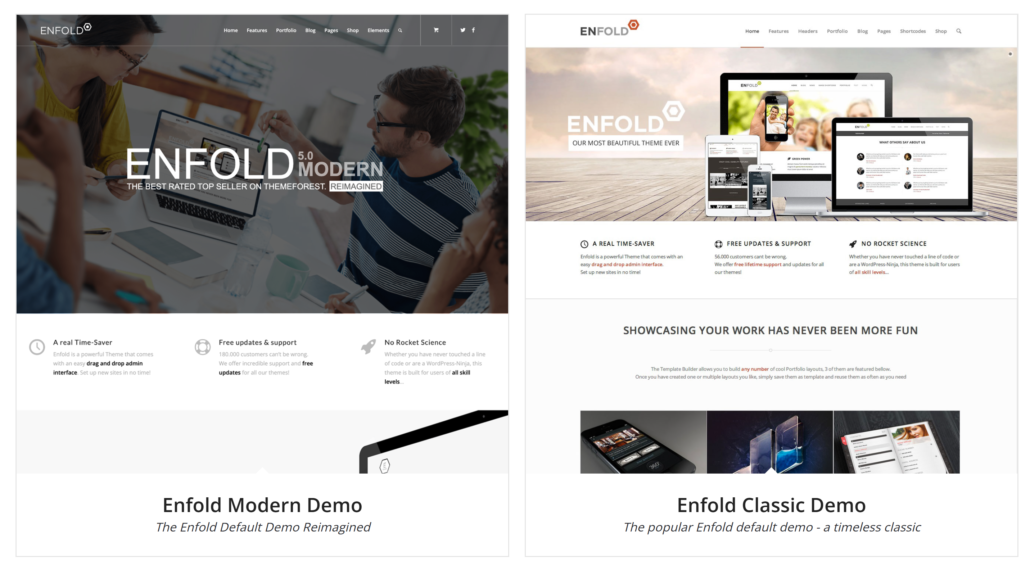
I use a specific WordPress theme that has several demo templates to choose from and also offers a drag-and-drop style page builder.

With Weebly, you don’t need to worry about adding plugins to your website. You don’t have to make sure the theme and Weebly software are kept updated. Weebly takes care of all of that. You do need to manage these for a WordPress website, but they can be enabled to update automatically. But still, they need to be updated.

WordPress is King when it comes to Search Engine Optimization (SEO). Plus, it offers almost an unlimited assortment of plugins you can add to the platform to give your site extra functionality. Weebly is a good option if SEO isn’t vital to your site, like you aren’t trying to attraction readers from the entire world, maybe just your geographic location. Weebly’s SEO statistics is built-in, no extra plugin to add. If we use WordPress for your site, I will recommend a Google Analytics account is set up for optimal SEO.

As far as price, it’s less expensive to host a WordPress site than Weebly. $2.95/month (using BlueHost.com) vs $12/month for the Weebly Professional Plan). Check sites for current pricing.

Weebly does not offer email services. If your domain is with Weebly, then you will need to sign up for (and pay for) Google Workspace. If your domain is at BlueHost.com, then we can set up your custom domain email account and you can either use BlueHost to check your mail or use something like Outlook or Google Workspace (extra fee). Ask me about email services and I can explain your options and help you decide.

There are tons of other, more detailed comparisons I could make, but I prefer to meet with my clients and listen to what they want from their site FIRST before I recommend one or the other. See my page about How I Work.

If you are considering a new website or blog, or updating a current site, give me a call. We can connect, with no obligation, to determine what’s best for you.

Here’s some info on Website/Blog consultations.

WEEBLY WEBSITE UPDATE 3/2/2026

BlueHost.com has announced that they are no longer supporting the Weebly software on their platform. So if you have a Weebly website, hosted with BlueHost.com, you will need to convert to a different platform. I can help you migrate your site to a WordPress or Squarespace website. Or, you have other options.

If you signed up directly with Weebly, you can continue to maintain the site you have at this time. Anyone looking for a new Weebly website will be asked to use Square Online. No more Weebly sites can be created. Weebly merged with Square in 2018. Square, Inc. officially changed its corporate name to Block, Inc. in December 2021.

Contact me if you have a Weebly website hosted with Weebly (Square/Block). The software isn’t going to be enhanced like other platforms. It served it purpose as an easy platform for beginners or non-technical admins but now it’s time to pick something else that will keep up with the growth and technology surrounding websites.

Contact me with your questions about Weebly, Square, WordPress or Squarespace websites.

If you need a membership website, learn more about the websites I make using MembershipWorks.com.

Michelle Aspelin
Mindshare Marketing & Implementation Services LLC

Did you get the email from the Google Analytics Team? Google Analytics 4 is replacing Universal Analytics. What does that mean for your website or blog?

I have been making websites since 2009 and when I first started, I used Universal Analytics. I set up a Google Analytics account for my client, then I got the UA code and added it to the website. The code I added allowed Google to start to track information like what websites were referring visitors to your website, what’s the most popular page on your website, how many hits are you getting from the marketing you are doing. Many clients find this information useful to target their marketing. If you run ads on Google or Facebook, this info is helpful. I like to collect the data now, even if you aren’t using it, you may want it in the future.

Fast forward to 2022, now Google Analytics 4 is replacing Universal Analytics and they won’t be supporting Universal Analytics after July 1, 2023. Your website won’t track your hit activity after this date. You won’t get any data. That gives you plenty of time to update, but don’t wait until the last minute. Google Analytics 4 is their next-generation measurement solution. There are Google experts out there that can help you maximize the information, especially for those of you with online shopping carts who rely on national and international customers.

Here’s a screenshot from one of my websites. You can see the spike in hits. I ran a Facebook ad during that time.

Google Analytics Screenshot

My recommendation is to log into your website and look at your SEO and Google Analytics now. If you have the Universal Analytics code on your site, consider upgrading it now to take advantage of Google’s most recent analytics. I have a plugin from Google that I like to add to my WordPress websites that connects your Google Analytics 4 to your website. This allows you to see some of the analytics data at a glance when you log into your website.

If you want to learn more and do the update yourself, here’s a link that explains Google Analytics 4.

If you want my help, I can log into your website, see what Google Analytics you are currently using and then log into your Google Analytics account and switch you from Universal Analytics to Google Analytics 4. Then, I can install the new plugin to track your results. I can’t image it would take more than 30 minutes to make the switch and do the setup. The hardest part might be finding your Google Analytics account login information, but I can probably help you with that too! I can couple this change with other website updates so your site stays current.

Let me know when you are ready to update.

Michelle Aspelin
Mindshare Marketing & Implementation Services LLC


Do you want to know how to make a blog post on WordPress? Many of my clients make their own blog posts. There are several fields on the screen to fill in to make your post the most effective and search engine friendly. The point of adding blog posts are to increase your search engine results as well as offer education for your clients. When you choose the right keywords and tags, your posts can remain on the first page of Google Search Results for years! But if you forget to fill in some of the fields, your posts aren’t nearly as effective. Use the following as a guide to make sure every blog post you make is complete and as effective as possible. If you want to know why someone should blog, and how often, visit How To Make an Effective Blog Post.

Login to your website or blog, www.yourdomain.com/wp-admin

Click on Posts, Add New

Type the Title. (If you go back and change the title, make sure the permalink matches your title name).
This will appear on your website. Use your keyword in your title if possible. The keyword phrase on this post is “blog post on WordPress”

Type your content in the next box. If you have a page builder with your WordPress theme, you can choose that to make a more creative blog post, but I find the classic blog edits works most of the time. Keep it simple.

If at anytime you cannot complete your post, click Save as DRAFT at the top right. You want to make your blog post on WordPress the best it can be so don’t rush it if you get interrupted before you finish yocategories and tagsur post. Save it and come back to it.

On the right side, choose your category for the post (bottom right of screen). You can create a new category just below the category box.

Under that, add your tags for the post, similar to your keywords. These WILL show up under your post on your blog, whereas keywords do not. Keywords help people who search for you to find you.

If your blog posts are set up to display an image on the blog page, then be sure to add a Featured Image to your post. You can crop your image before you upload it to try and have it displayed the way you want it. Each blog page is set up differently and therefore your ideal photo size may be different than someone else’s so I don’t give sizes, just play with it. The thumbnail will be cropped and you can’t control that. Make sure the main part of your image is in the center. I just make sure no one’s head gets chopped off and go with it.

I always add a search engine plugin to the websites I make. For my earlier websites, I installed a plugin called All in One SEO Pack. For my more recent websites, I use Yoast SEO. I install an SEO plugin to give you more power over your posts and so users can find you easier on the Internet when they type in the keywords you include on your post. All of your pages also have this functionality.

For those with All in One SEO Pack

Enter a Title, this will be the blue title you see in Google Search Results. A good example is “Victoria MN Chiropractor, Dr. 123 with ABC Family Chiropractic”, “Victoria MN Realtor Paul Aspelin”, or “How to write a blog post”.

Description: this is the paragraph below the title in Google Search Results. Describe your post content, persuade them to click on your post to read the whole thing.

Keywords:
Choose keywords that you think users would type into Google to find you. Keywords can be individual words or short phrases like, “massage to relieve lower back pain” or “grand junction co realtors”.

Choose keywords that have low or medium competition with a high “local search” number

For those with the Yoast SEO Plugin

It’s a little easier because Yoast gives you advice on how to improve your blog post so it goes from red, to orange to green, the best post. Fill in your Focus Keyphrase in the Yoast SEO box.

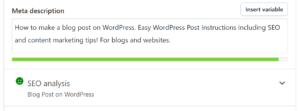
Repeat this exact Focus Keyphrase as your Title, include it in the Meta Description, add tags for content in your post. Repeat the Focus Keyphrase several times within your post content, especially in the first sentence. Add it as the Alt Tag for your images and your Featured Image.

When you think you’ve done a good job, then click on SEO Analysis and see what else you can do to make your blog post smiley face green. You may need to add some internal or external links, make your post longer, etc. Follow the advice as best you can with still keeping your post authentic and sounding natural, not forced.

screenshot of Yoast SEO Analysis button

Once your Content and your SEO is done, then Publish

Review your post (use spell check) and make sure it’s complete and all of the fields are filled in, then click PUBLISH at the top right.

You can go back and edit a post any time. When you are done editing, click UPDATE to Save your changes.

Want to measure your blog’s success? Consider adding Google Analytics to your website/Blog. I can help you get it set up so you can be collecting data with your first post!

Call me with questions! Send me an email.
Michelle Aspelin
Mindshare Marketing & Implementation Services
(952) 484-6015


First, What’s a blog?

In very simple terms, blogs (short for web logs) are websites where a series of messages, or posts, on particular subjects are posted in chronological order—newest to oldest. Most have an area where blog visitors can post comments as well. Blogs are intended to be updated and read often. They are no longer considered personal diaries. Some are solely informational, others are sales driven, and others are somewhere in between. This flexibility is just one of the reasons to choose a blog over a more traditional site more and more often.

Other blog advantages

  • Easy to get up and running quickly
  • Inexpensive to maintain (Example: $3.95/month hosting fee or FREE from WordPress.com)
  • Search engines—and people—like them because they’re wonderful vehicles for sharing ideas, videos, educational content, photos, etc.
  • When maintained regularly, one of the best ways to move up in the search engine results Read more

What Do Clients and Customers Think of Your Website?

Do clients and customers ever tell you what they think of your website? Probably not. What about prospects or potential members for your organization? They might share with you if they like it, but if they are turned-off by your website, they just go away and you never even know why you lost them.

First impressions are very important in business and for nonprofit organizations. What does your website say about you?

It doesn’t matter if you dedicate time and resources for nice business cards, brochures and other marketing materials if online users never get past your website.

Need a new website?

I work with clients to review their current websites and discover what’s working and what’s not. I make sure that their message is in alignment with their other marketing materials and that the message is clear and attracts their ideal client.

I have worked with several clients where we reviewed their Facebook page, LinkedIn profile, website and print materials to get them all looking and saying the same cohesive message.

I create websites and blogs primarily using WordPress because it’s search engine friendly naturally. Plus, I can customize the design to fit my client’s style.

Clients give me an idea of what features they need like online forms, a calendar for events, videos, password protected pages, shopping cart, downloadable documents, etc. I create a proposal based on my client’s needs. We work together on design style and content until the site is launched.

Once the website is live, I teach my clients how to maintain their site. I offer tips on effective blog posts and how to stay fresh. I do as much or as little as my clients want me to do. Some clients want to take it over and run with it, others want me to make the updates. I’m fine either way. You can read my “How I work” post. I offer advice and training to empower my clients. However, many just don’t have time to work on a website, they are busy serving their customers, members and clients.

I enjoy taking on an outdated website and giving it new life. I love creating websites and blogs my clients are eager to share. If you need a new site, or want to update your current website, I’d love to hear from you.

I have more recommendations on my MembershipWorks profile if you are looking for a website for your nonprofit that includes features like Membership and Event management, online Donations and Custom Forms.

More information at WordPress Websites and Blogs

If your WordPress Websites are more than a year old, it’s time for a review and probably some updates. Here are a few tips for you to consider as you look over your WordPress Websites.

  1. Look at the content itself. Is it current? Do you have projects or events you need to ADD to your site? Review your COVID language as we are coming out of the pandemic and moving towards more in-person opportunities. Have any elements of your core organization changed? Any new policies to add, adjustments to your mission or objectives? Do you think your website is attracting the right audience to serve your purpose?
  2. Are your images outdated? A picture can speak a thousand words. Maybe it’s time to take some new photos for your website about your own projects, events, products, etc. If you don’t have your own photos, you can consider purchasing some at a very reasonable price. I list a photo website on my Resources page.
  3. Are your forms still accurate and asking all the best questions? Maybe it’s time to send your audience a survey. I seem to be getting a lot of those lately. Connect with your audience to know that you are still providing the products and services they desire. I like to use Google Forms so the answers are automatically transferred to a spreadsheet that creates a database for easy reference and sorting. There are many types of form options to help you gather information.
  4. WordPress websites are enhanced with plugins. Plugins can make your website load faster, keep hackers out, make working in WordPress easier with a drag and drop page editor, and you can use plugins to help with Search Engine Optimization (SEO) and Google Analytics. There are thousands of plugin options to make your WordPress website function to meet your needs. Make sure that you ENABLE the option to keep all of your plugins updated automatically. That was a somewhat recent change WordPress made and it’s fabulous. Outdated plugins are a like an open window for hackers to enter your site.WordPress Websites
  5. After looking at your website’s content, images, forms and plugins, if you still think it needs a new look, consider a new WordPress website theme. A theme is what gives your website it’s “look”, determines the layout with rows or columns, what the header and footer look like, the colors and fonts, if it has a sidebar or not, etc. Is it responsive, meaning it “moves” as you scroll down the page. Does your website look good on all devices like phones, tablets and desktop computers?
  6. Maybe it’s time to add a video to your WordPress websites. Videos can explain who you are, what you do, and how you are different. People browsing your website will enjoy the break from having to read everything. Keep your videos around 2 minutes. Much longer and you will lose the viewers interest. Keep it concise and on-point to share your message. You are better off with 1-3 smaller videos than one long video.

If you need help updating your website, let me know. I can help you review what you have and make recommendations to update your site and keep it as safe as possible from hackers. Your website is your hub of your marketing campaign. All of your ads, social media, business cards, etc. drive traffic back to your website. If it’s not current, it can hurt your reputation. Sometimes you just need a few minor changes to have a huge impact. Let me know if I can help with advise or doing the work for you.

Michelle Aspelin
Mindshare Marketing & Implementation Services, LLC
952-484-6015

Email Me

Hello!

It’s time to log into your WordPress website and see if you have a warning about the need to check your PHP version of the software. Its software that resides on the server computer where your website is hosted. Most of my clients sites are hosted with BlueHost.com or SiteGround.com but I know others use GoDaddy and other host services.

When you log in, you will see a warning on the Dashboard. If you don’t see the warning then you are all set. If you do see the warning then you need to alert your hosting company and ask them to update your PHP software. Most times, there is no effect to your website. Check your site immediately after the update to make sure everything still looks ok and links and forms are working properly. I have had one client who’s theme was outdated. The theme maker quit making updates for it. Therefore, it wasn’t compatible with the most recent PHP software version and her site “broke” and wouldn’t display at all.

The good news was that all of her content was still there, we just needed to find a new theme. We chose one from the same provider as the original theme to make the transition the easiest and most cost effective. It only took 2 hours to convert and give her website a whole new look. It’s much more updated looking, it’s simple and easy to navigate.

If you need help to check your PHP version of the software or fix your site if your theme is outdated, let me know. There are some scans I can run ahead of time to see if your site might have issues. It’s important to keep all of your plugins updated as well as your theme and WordPress version. Updates are typically done to improve security, speed, fix bugs, and add options.

Let me know if you have any WordPress or website hosting questions. For questions about BlueHost, visit my Resources page. To see all of the services I offer, view my Services page.

Click here to learn what technically PHP is.

Michelle Aspelin
Mindshare Marketing & Implementation Services LLC
952-484-6015