Tag Archive for: WordPress website updates

Paying too much for your membership website?

I recently worked with a client that felt their membership website had become too complicated and too expensive. Their concerns started to unfold during our first phone conversation. I realized what they were really looking for. They wanted to simplify and have the ability to update their website themselves.

Their experience isn’t unique.

I believe in right-sizing technology. The best solution isn’t the one with the most features, it’s the one your organization can afford, understand, and confidently manage moving forward.

This article is rooted in a real transformation I helped them achieve.

Is your membership website too complicated?

My client was paying for capabilities they rarely used. Even more concerning was that their website itself had fallen behind on the theme, plugins, and WordPress updates. I am a strong believer in keeping the software updated. By simplifying both the website and membership management, they ended up with a solution that better matches their requirements, budget, and staff resources.

How We Simplified Their Membership Website

I emailed them the structured Membership Launch Framework™ I created to manage the project. We worked through their concerns about their current membership system and website services provider. We completed the shared spreadsheet so I could fully understand where they were and where they needed to go.

They came to me because they were stuck. Their admin had done an excellent job setting up most of MembershipWorks. She wanted my expertise to finish the implementation and integrate it with their website. I was happy to help. I made a few initial suggestions for improving what she had done so far. We got started right away.

In the process, we determined that rebuilding their website with the Enfold Theme would give them a solution that was easier to maintain themselves, making them less dependent on an outside developer. I love teaching my clients how it all works so they can manage it themselves. I installed the Enfold theme and created their new site based on their current site. They owned the content already. I offered suggestions based on my marketing experience and improvements for their SEO (search engine optimization) and AI optimization.

Here’s how simplifying your membership website can reduce costs and make it easier for everyone to manage.

Signs your membership website may be more complicated than it needs to be:

  • You’re paying for features no one uses or possibly even understands
  • Only one person knows how to update the website
  • Website updates have been postponed, or worse, ignored
  • You’re paying multiple vendors to maintain different systems
  • Staff members or volunteers don’t feel comfortable making simple website updates
  • Your WordPress version or plugins are out of date because updates feel risky
  • Your annual membership software and technology costs keep increasing

When was the last time your membership website was updated?

If you’re not sure, you’re not alone. Many small associations and nonprofits find themselves paying for software and website services that have gradually become more expensive and more complicated than they need to be.

That’s where I come in.

I would like to work as your guide. To explain that there is an option for an affordable, integrated system that you’ll feel comfortable managing yourself. I get it all set up and provide you with written instructions and short video tutorials. Plus, I am available to help you by providing my services at an hourly rate, billed monthly, after the implementation is complete. That way, you always have a person you can call for help or customized resources you can reference.

Technology should support your mission, not distract from it.

If managing your membership website feels overwhelming or more expensive than it should be, it may be time to step back and ask whether a simpler solution would better serve your organization. Save yourselves some time and money.

My goal isn’t to create a website that only I can maintain. It’s to build a website you, your staff, or volunteers, can confidently manage long after the project is complete. You can read my post about why I use the Enfold Theme for the WordPress websites I build.

My approach is simple: less is best.

I help organizations right-size their technology so they’re paying for the tools they need, not the ones they’ll never use. I believe in minimizing, making things easier, not more complicated. Reducing the number of programs and systems you use by intgrating them into MembershipWorks.

Every organization is different, and there’s no one-size-fits-all solution. But if your current membership website feels more complicated or expensive than it should, I’d be happy to talk through your options with you. Together we can determine whether simplifying your website and membership management makes sense for your organization.

Ready to explore a simpler system? Contact me to schedule a phone conversation.


Other posts you might find helpful:

Is MembershipWorks Right for Your Organization?

Squarespace vs. WordPress for Membership Websites

Why Most Membership Websites Stall


Michelle Aspelin
MembershipWorks Implementation Specialist
Mindshare Marketing & Implementation Services LLC
Based in Colorado, USA.
Hello!

It’s time to log into your WordPress website and see if you have a warning about the need to check your PHP version of the software. Its software that resides on the server computer where your website is hosted. Most of my clients sites are hosted with BlueHost.com or SiteGround.com but I know others use GoDaddy and other host services.

When you log in, you will see a warning on the Dashboard. If you don’t see the warning then you are all set. If you do see the warning then you need to alert your hosting company and ask them to update your PHP software. Most times, there is no effect to your website. Check your site immediately after the update to make sure everything still looks ok and links and forms are working properly. I have had one client who’s theme was outdated. The theme maker quit making updates for it. Therefore, it wasn’t compatible with the most recent PHP software version and her site “broke” and wouldn’t display at all.

The good news was that all of her content was still there, we just needed to find a new theme. We chose one from the same provider as the original theme to make the transition the easiest and most cost effective. It only took 2 hours to convert and give her website a whole new look. It’s much more updated looking, it’s simple and easy to navigate.

If you need help to check your PHP version of the software or fix your site if your theme is outdated, let me know. There are some scans I can run ahead of time to see if your site might have issues. It’s important to keep all of your plugins updated as well as your theme and WordPress version. Updates are typically done to improve security, speed, fix bugs, and add options.

Let me know if you have any WordPress or website hosting questions. For questions about BlueHost, visit my Resources page. To see all of the services I offer, view my Services page.

Click here to learn what technically PHP is.

Michelle Aspelin
Mindshare Marketing & Implementation Services LLC
952-484-6015

These instructions work for both pages and posts

If you are linking to another website, go to the page on the site you want to link to and copy the URL from the top of your browser. Or if you know the exact link already, you can skip this step.

Login to your website.

Go to the page or post where you’d like to add the link.

First type the “anchor text”. You can use “click here” or “here’s the link”, or better yet, use the words themselves like “visit zyx website for details” or “learn more at xyz”. It doesn’t matter.

For our example, let’s use “click here”.

It will look something like this… For the recipe, click here.

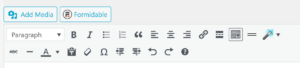
Highlight the words “click here” and on the edit toolbar, click on the icon that looks like a chain link, when you hover over it, it says insert/edit link.

How to add a Hyperlink to a WordPress Website - showing the WordPress toolbar

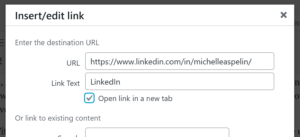
Put your curser on the URL field and delete the https:// that is in there by default. Right click and choose PASTE to insert your link URL.

You can give the link a Title, like “Link to the Shrimp Fondue Recipe”, or leave it blank. When the user hovers over the link, it will display what you have entered as the Title, so make it reader friendly, it’s not just for you.

Check the box that says “open link in new tab”. (When a user clicks on the link on your site, they will go to the URL you linked. When they are done and close that window, they will be brought back to your site. If you don’t check the box, when they close the window, they will NOT be brought back to your site. You worked hard to get them to your site, you don’t want to lose them!)

how to add a link in a wordpress website

*NOTE: If you are creating a hyperlink to another page on your website, then DO NOT check the “open link in new tab” box. Otherwise, they will have your website open twice and might get confused.

To save click Add Link.

Go to your page or post and double check that the link works. Hover over it and see the Title. Click on it. If it doesn’t work, check where you pasted the URL, did you delete the default https:// or is it in there twice? If it still doesn’t work, repeat steps.

To Create a Link to a document or audio file

First you need to upload the file to your website, then you can copy the File URL and follow the instructions above to create a hyperlink.

Go to your Dashboard.

Choose Media, Add New

Click “Select File” so you can upload the file from your computer to your website.

After the image or file is loaded, give it a Title that makes sense to you. If it’s an audio file of your radio interview, call it “Radio Interview 9.12.12 with Dow Jane” or whatever makes sense for you. When the user hovers over the link, it will display what you have entered as the Title, so make it reader friendly.

For good SEO value, copy the Title text into the Alternate Text field and the Description Field. If you are uploading an image, you can add a caption. If it’s a document or audio file, leave that blank.

WordPress assigns this media a File URL. Copy the entire File URL.

Choose SAVE All Changes at the bottom. Now your file is saved on your website or blog.

Follow the instructions above so you can create a hyperlink to this file on your website or blog. You can also paste this file URL on other applications like Facebook.

See more WordPress tips on my blog. (see my internal link for my blog page?)

Michelle Aspelin
Mindshare Marketing and Implementation Services
Connect with me on LinkedIn (see my external hyperlink for the word LinkedIn?)