Tag Archive for: WordPress website updates

Hello!

It’s time to log into your WordPress website and see if you have a warning about the need to check your PHP version of the software. Its software that resides on the server computer where your website is hosted. Most of my clients sites are hosted with BlueHost.com or SiteGround.com but I know others use GoDaddy and other host services.

When you log in, you will see a warning on the Dashboard. If you don’t see the warning then you are all set. If you do see the warning then you need to alert your hosting company and ask them to update your PHP software. Most times, there is no effect to your website. Check your site immediately after the update to make sure everything still looks ok and links and forms are working properly. I have had one client who’s theme was outdated. The theme maker quit making updates for it. Therefore, it wasn’t compatible with the most recent PHP software version and her site “broke” and wouldn’t display at all.

The good news was that all of her content was still there, we just needed to find a new theme. We chose one from the same provider as the original theme to make the transition the easiest and most cost effective. It only took 2 hours to convert and give her website a whole new look. It’s much more updated looking, it’s simple and easy to navigate.

If you need help to check your PHP version of the software or fix your site if your theme is outdated, let me know. There are some scans I can run ahead of time to see if your site might have issues. It’s important to keep all of your plugins updated as well as your theme and WordPress version. Updates are typically done to improve security, speed, fix bugs, and add options.

Let me know if you have any WordPress or website hosting questions. For questions about BlueHost, visit my Resources page. To see all of the services I offer, view my Services page.

Click here to learn what technically PHP is.

Michelle Aspelin
Mindshare Marketing & Implementation Services LLC
952-484-6015
These instructions work for both pages and posts

If you are linking to another website, go to the page on the site you want to link to and copy the URL from the top of your browser. Or if you know the exact link already, you can skip this step.

Login to your website.

Go to the page or post where you’d like to add the link.

First type the “anchor text”. You can use “click here” or “here’s the link”, or better yet, use the words themselves like “visit zyx website for details” or “learn more at xyz”. It doesn’t matter.

For our example, let’s use “click here”.

It will look something like this… For the recipe, click here.

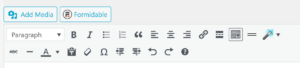
Highlight the words “click here” and on the edit toolbar, click on the icon that looks like a chain link, when you hover over it, it says insert/edit link.

How to add a Hyperlink to a WordPress Website - showing the WordPress toolbar

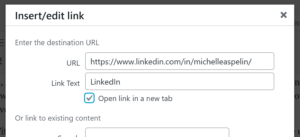
Put your curser on the URL field and delete the https:// that is in there by default. Right click and choose PASTE to insert your link URL.

You can give the link a Title, like “Link to the Shrimp Fondue Recipe”, or leave it blank. When the user hovers over the link, it will display what you have entered as the Title, so make it reader friendly, it’s not just for you.

Check the box that says “open link in new tab”. (When a user clicks on the link on your site, they will go to the URL you linked. When they are done and close that window, they will be brought back to your site. If you don’t check the box, when they close the window, they will NOT be brought back to your site. You worked hard to get them to your site, you don’t want to lose them!)

how to add a link in a wordpress website

*NOTE: If you are creating a hyperlink to another page on your website, then DO NOT check the “open link in new tab” box. Otherwise, they will have your website open twice and might get confused.

To save click Add Link.

Go to your page or post and double check that the link works. Hover over it and see the Title. Click on it. If it doesn’t work, check where you pasted the URL, did you delete the default https:// or is it in there twice? If it still doesn’t work, repeat steps.

To Create a Link to a document or audio file

First you need to upload the file to your website, then you can copy the File URL and follow the instructions above to create a hyperlink.

Go to your Dashboard.

Choose Media, Add New

Click “Select File” so you can upload the file from your computer to your website.

After the image or file is loaded, give it a Title that makes sense to you. If it’s an audio file of your radio interview, call it “Radio Interview 9.12.12 with Dow Jane” or whatever makes sense for you. When the user hovers over the link, it will display what you have entered as the Title, so make it reader friendly.

For good SEO value, copy the Title text into the Alternate Text field and the Description Field. If you are uploading an image, you can add a caption. If it’s a document or audio file, leave that blank.

WordPress assigns this media a File URL. Copy the entire File URL.

Choose SAVE All Changes at the bottom. Now your file is saved on your website or blog.

Follow the instructions above so you can create a hyperlink to this file on your website or blog. You can also paste this file URL on other applications like Facebook.

See more WordPress tips on my blog. (see my internal link for my blog page?)

Michelle Aspelin
Mindshare Marketing and Implementation Services
Connect with me on LinkedIn (see my external hyperlink for the word LinkedIn?)